A canonical tag is a piece of HTML code that guides search engines towards the main copy of a page.
While www.example.com and example.com might look the same to us, search engines view every variation of the same URL as a different page.
Similar or duplicate pages like these can impact your web page’s search rankings, as search engines may not know which version of the page to show in the search results.
You can prevent this issue by specifying the preferred version of a page URL with a canonical tag, also known as a “rel canonical“.
In this post, we’ll explain what canonical tags are, why they matter for your SEO efforts, how to set up a canonical tag, and canonical tag best practices.
What is a canonical tag?
A canonical tag tells search engines that a particular version of a page is the master copy or canonical version.
This lets search engines consolidate ranking signals, like inbound links, to a specified canonical URL, increasing its likelihood of ranking in search results.
You can add a canonical tag manually in the <head> tag of the HTML code, or through your website’s CMS. Here’s a canonical URL example:

<link rel="canonical" href="https://searchrepublic.co.nz/">
What is a duplicate URL?
Duplicate URLs are pages that contain the same or similar content. Search engines see every variation of a URL as a unique ‘page’ and often treat each as separate, even if they look the same to us.
URL variants
You can often access the exact same page in different ways. Each alternative version is treated as a different page by search engines.
For example, you could access a website’s homepage through any of these unique URLs:
- HTTP and HTTPS: Which communication protocol you use to access the website.
- https://www.example.com
- http://www.example.com
- www: Blank subdomains typically redirect to www.
- https://example.com
- https://www.example.com
- Index file: The main page file of any folder in a website.
- https://www.example.com
- https://www.example.com/index.html
URL parameters and tracking
Many times, website CMSes automatically generate duplicate URLs without your input. E-commerce sites that use filterable or sortable categories will often have dozens of duplicates of the same URL. For instance:
- https://www.example.com/clothing/shirts
- https://www.example.com/clothing/shirts?type=graphic
- https://www.example.com/clothing/shirts?colour=green
- https://www.example.com/clothing/shirts?size=XS
Similarly, URLs with a tracking parameter, such as a UTM parameter, are considered separate URLs by search engines.
Syndicated content
Some duplicate pages are created manually, e.g. a blog post which you have syndicated across multiple websites.
In this case, you might want the same content to be available across all sites for promotional purposes, but only direct search engines towards your main site.
Using a canonical tag can inform search engines which page is considered the main copy, and which are duplicate versions.
Why do canonical tags matter for SEO?
Duplicate pages can affect search rankings, as they dilute signals that search engines use to determine which URL to display in search results. Using a canonical tag helps search engines identify the preferred URL, improving SEO performance.
Consolidates PageRank
One way search engines determine the importance of a web page is through the quantity and quality of other pages that link to it. Google’s link signal algorithm is called PageRank.
The algorithm considers different URLs to the same page to be different pages. This means that duplicate pages partially take link equity from the specific page you want to rank.
Implementing canonical tags allows PageRank to consolidate link equity into a single preferred URL, improving its overall ranking in Google Search.
Helps manage syndicated content and scrapers
If you publish your content on different websites, a canonical tag helps search engines understand which website contains the original version and which websites just republish (or syndicate) it.
If you experience issues with scrapers (sites that republish your content without permission), a canonical tag can also help search engines determine that your page is the original if the scraper copies entire page content with the tag.
Improves indexing
Canonical tags tell search engines which pages should be indexed. Too much duplicate content can also affect your ‘crawl budget’. Designating a canonical page helps Google prioritise the unique pages that matter.
Overall, a canonical tag enables search engines to consolidate SEO signals to a single URL. It strengthens the page’s SEO value, helping you rank higher on Google.
How to implement canonical tags
Many website CMSes automatically add a self-referencing canonical tag to every page. This ensures all link equity is directed to the master URL, rather than dispersed across URLs with parameters or URL variations.
If you’re intentionally publishing duplicate content and want to direct search engine bots to the main page, you should manually add the canonical URL to the duplicate page.
Adding canonical tags in the HTML code
You can manually implement canonical tags by going to any duplicate URL and adding this canonical link element in the <head> section of the HTML code:
<link rel="canonical" href="https://example.com/">
Adding canonical tags through a CMS or SEO plugin
Most CMS allow users to specify the canonical URL of a page or offer plugins to do so.
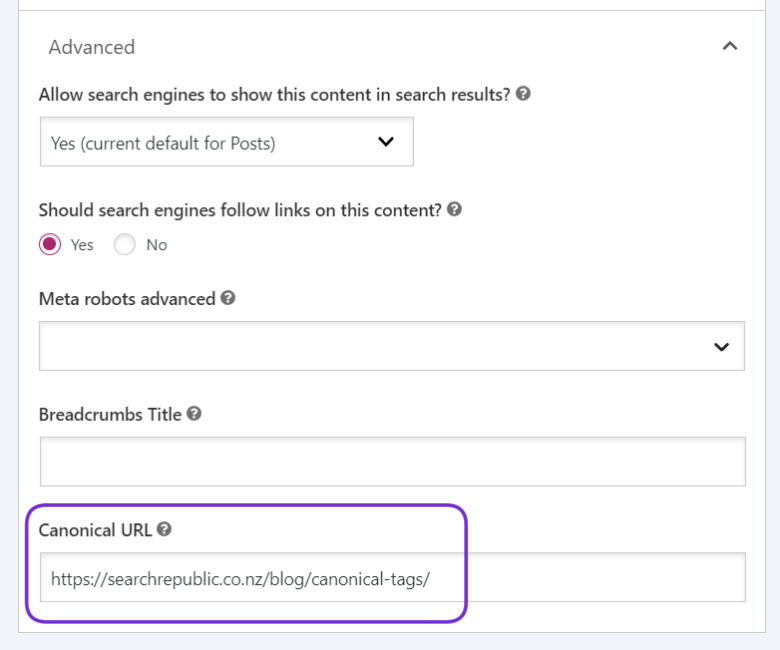
For example, you can use the Yoast SEO plugin on WordPress to implement canonicals for any page:
- Go to the page where you want to add a canonical tag.
- Scroll down to ‘Advanced’.
- Add the canonical URL.
How to check canonical tags
Checking canonical tags manually
You can check the canonical tag of any web page by viewing its source code:
- Right click on the page and click “View page source”, or press Ctrl+U.
- Ctrl+F “canonical” to quickly find the canonical tag.
Checking canonical tags in Google Search Console
Using Google Search Console (GSC), you can audit canonical tags on your own site:
- Enter the URL you want to check in the URL inspection tool.
- Open the Page Indexing dropdown, and scroll down to the User-declared canonical and the Google-selected canonical.

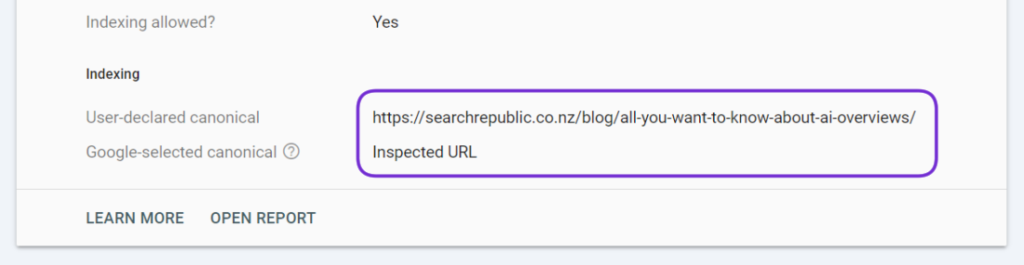
Sometimes Google selects a different URL as the canonical instead of your preferred canonical URL.
This might happen if other pages signal that the different URL is the ‘main’ version of your page, e.g., if your header links to a different URL to your preferred version of the page. Page quality and sitemap URLs can also affect the Google-selected canonical.
To prevent conflicting signals, make sure that your internal links are aligned, directing search engines to the same preferred URL.
Canonical tag best practices
1. Use self-referencing canonical URLs
A self-referencing canonical tag refers to a page with a canonical tag pointing to itself. For example, if the URL was https://www.example.com/sample-page, then a self-referencing canonical tag would be:
<link rel="canonical" href="https://www.example.com/sample-page" />
Using a self-referencing canonical tag ensures search engines don’t show URLs with parameters or the incorrect variant in the search results.
Many website CMSes will automatically add self-referencing canonical tags to pages.
2. Use absolute URLs
Use absolute URLs in canonical tags to prevent search errors from misinterpreting your canonical page. An absolute URL contains the page’s entire address, including the protocol and domain name, e.g. https://www.example.com/sample-page
In contrast, a relative URL only contains the link path following the top level domain, e.g. /sample-page
3. Stick to lower case URLs consistently
Mixed case URLs can create duplicates on case-sensitive servers. We recommend using lower case URLs on your server and canonical tags to avoid duplicate URL issues.
4. Use the HTTPS protocol if possible
Google prefers HTTPS pages over HTTP pages as canonical. If you switched to SSL, don’t use the HTTP URL in your canonical tag. Instead, use the HTTPS version.
Common canonical tag mistakes
1. Multiple rel=canonical tags on the same page
Multiple canonical tags on a page can cause conflicting canonical signals that confuse search engines. This may result in them ignoring the rel=canonical links.
2. Implementing canonicals on non-duplicates
Applying canonical tags to multiple pages that are entirely different might confuse Google or be completely ignored.
3. Blocking canonicals via robots.txt
Blocking different URLs in robots.txt will prevent Google from crawling them, which means search engines can’t see any canonical tags on that page.
4. Canonical loops across multiple URLs
Only use canonical tags that directly reference the master version to avoid canonical loops. For example, using a canonical tag from page A to page B, which is then canonicalised back to page A, will create conflicting signals that can confuse search engines.
Get in touch with the experts at Search Republic
Looking for an expert SEO agency in New Zealand to help with your digital marketing? With over a decade of experience, we’ve assisted businesses big and small deliver successful SEO campaigns. Contact our team to discuss your goals and see how we can help.
 Call us for more information
 brad@searchrepublic.co.nz
For more industry updates and helpful information, visit our blog.